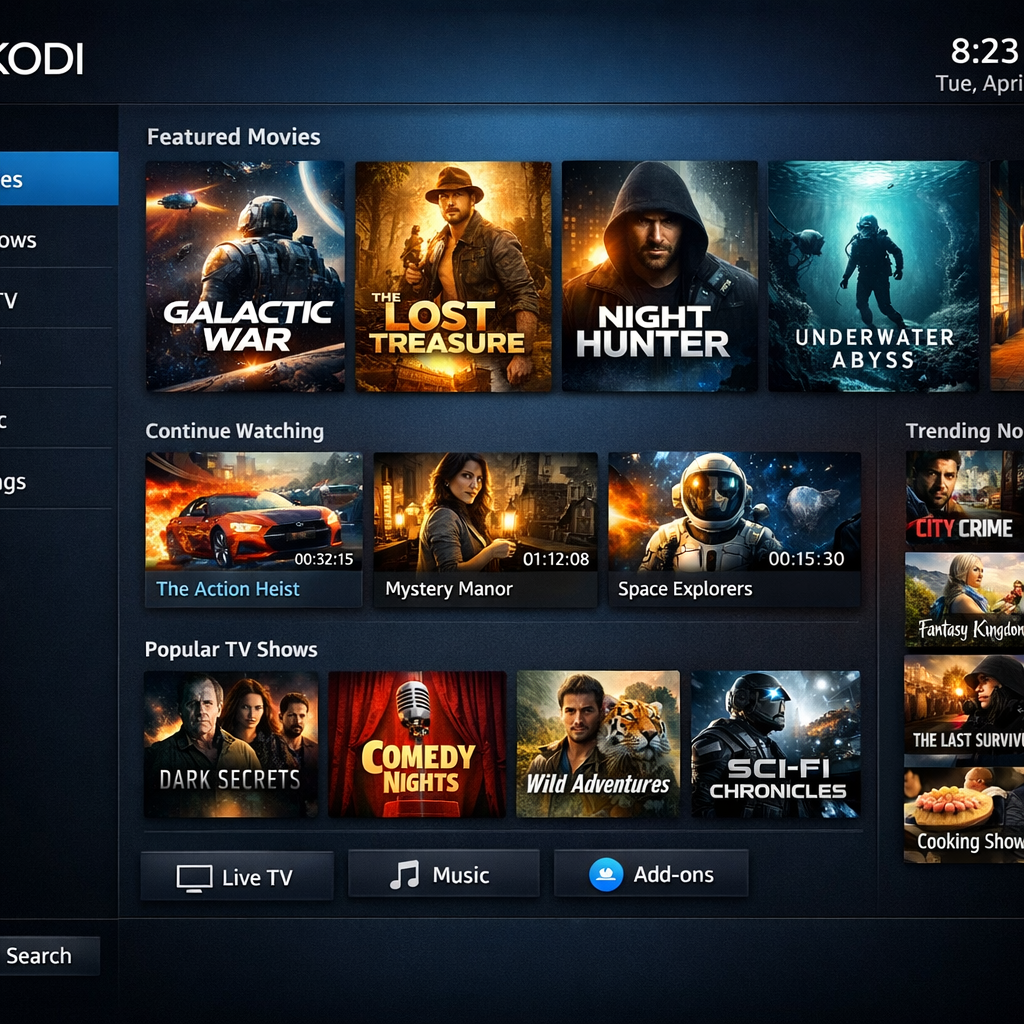
Looking for Kodi add-ons in 2026? Start with the official Kodi add-on catalog and choose one for a specific job. The picks below are listed for Kodi 21 “Omega” in that catalog. They are recommendations by use case, not a claim that we have tested every device or that a streaming service will work in every country. Check each listing and the add-on inside Kodi for current compatibility before installing.
Best official Kodi add-ons by use case
YouTube: online video
The YouTube add-on listing describes a video plugin for YouTube. It is a useful starting point if you want that service inside Kodi. Account features or playback may depend on the add-on setup and the service’s current requirements.
PBS Kids: family video
PBS Kids appears in Kodi’s Omega video add-ons. Consider it when you want family-focused content rather than a generic third-party “all movies” add-on. Availability can vary by location and provider.
NASA: science video
The NASA video add-on is listed as a way to access content from nasa.gov. It is a focused option for space and science programming.
Twitch: gaming streams
The Twitch add-on is listed as a video plugin for gaming streams. Check its listing and current Kodi interface for setup and sign-in requirements.
Radio Paradise: music
Radio Paradise is listed in the official catalog for music and slideshows. This gives the list a music choice alongside the video add-ons.
How to install from Kodi’s repository
- Open Add-ons in Kodi.
- Choose the add-on browser, then Install from repository.
- Open the built-in Kodi.tv add-on repository and browse the relevant category.
- Select an add-on, read its details, and choose Install. Kodi may ask you to confirm dependencies.
- Launch the add-on and follow any service-specific setup steps.
Kodi’s add-on manager guide explains this route. The official repository is included with Kodi by default; you do not need an unknown-source ZIP file for these picks.
How to choose safely
Check three things before installing: whether the add-on is listed for your Kodi version, whether the content provider operates in your region, and whether the service requires an account or subscription. An add-on being in Kodi’s repository does not make every external service free or available everywhere. Add-ons from private repositories are a separate category and can change or disappear without Kodi’s oversight. Read our guide to official versus third-party repositories for the distinction.
Frequently asked questions
Are these the only good Kodi add-ons?
No. Kodi’s official catalog includes video, music, skins, programs, and other categories. These five examples cover different uses; choose according to what you actually watch or listen to.
Do I need to enable unknown sources?
No, not for add-ons installed from Kodi’s built-in official repository. Kodi’s settings guide says the unknown-sources option is for installation outside that repository.
Sources: Kodi add-on catalog, official repository guide, and the individual add-on listings linked above.